User Manual
The Main Screen
When you open Correlate, you land on today's date with your full list of variables ready to update.
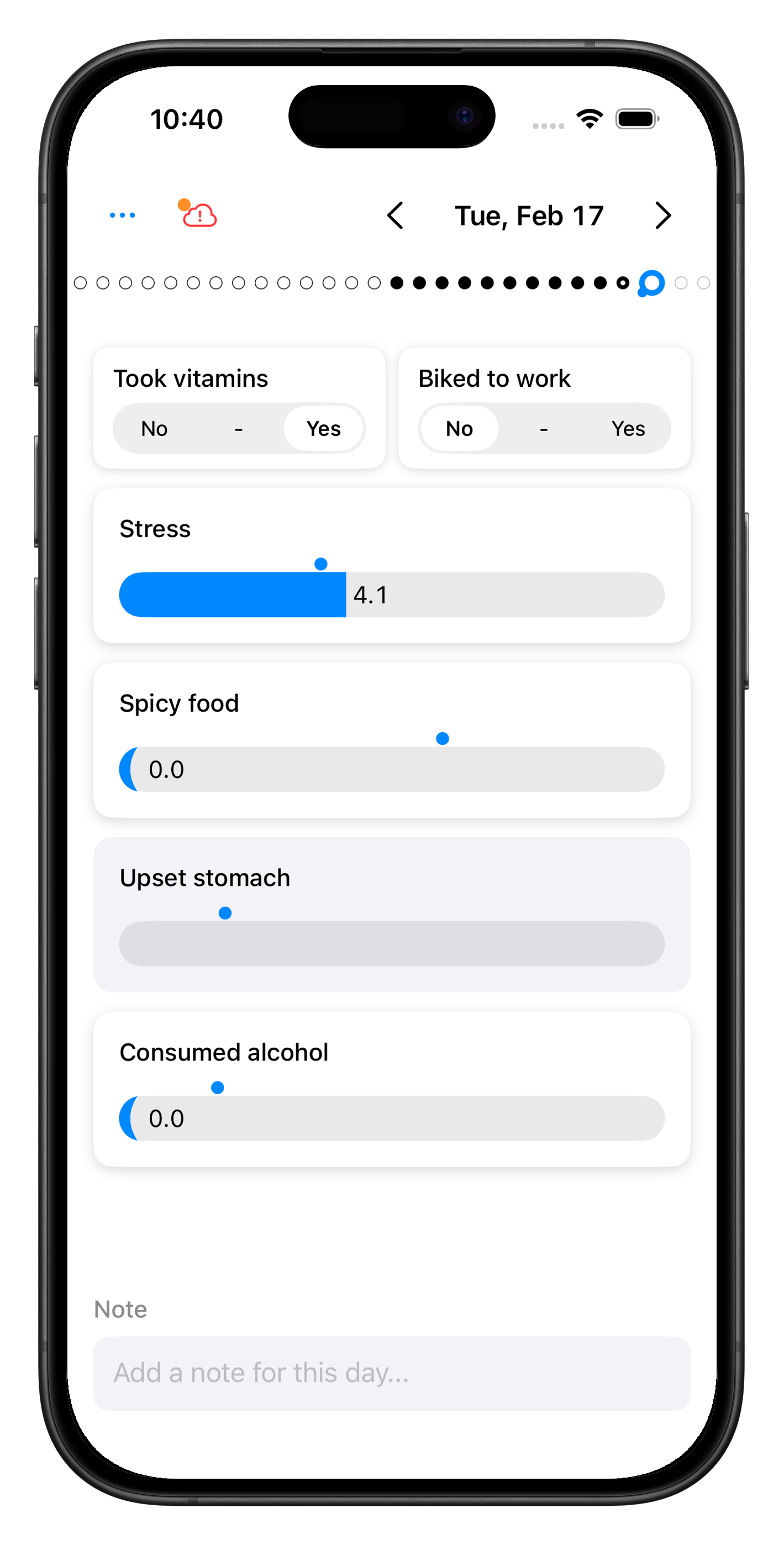
Variable layout — Float variables (sliders) each get their own row. Boolean variables (toggles) are compact: pairs of booleans share a single row to keep the list short and scannable. If you have an odd number of booleans, the last one gets its own row.
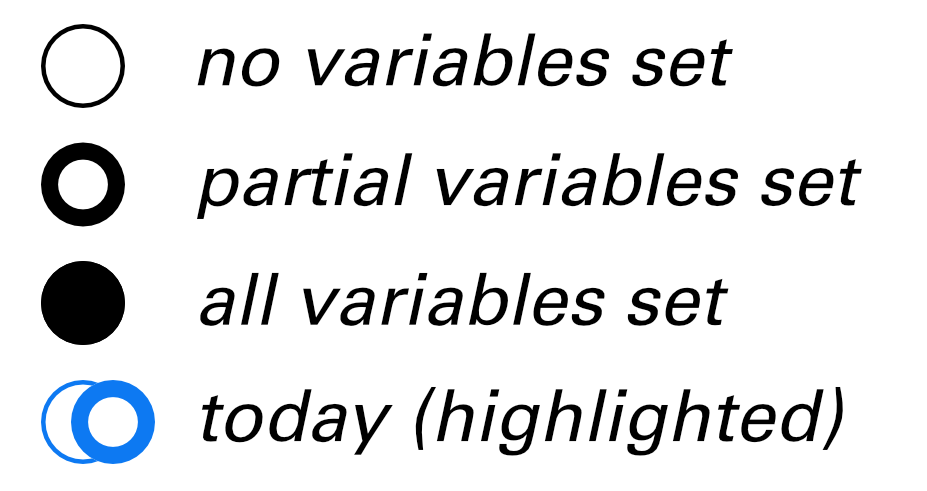
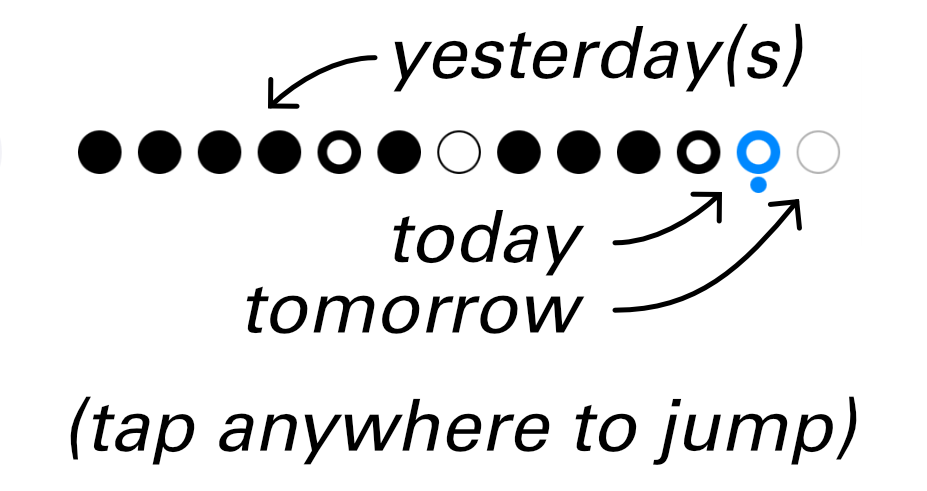
The days bar — A row of dots near the top of the screen shows recent days at a glance. Each dot has three states: empty (no variables set), half-filled (some set), or filled (all set). Today is highlighted in blue with a small indicator below it; tomorrow appears as a light gray dot to its right. Tap anywhere on the days bar to jump directly to that day.
The daily note — A text field at the bottom of the screen lets you jot down anything that doesn't fit into a variable. See Daily Notes below.
Recording Your Day
Toggles — Tap a Boolean variable to flip it on or off.
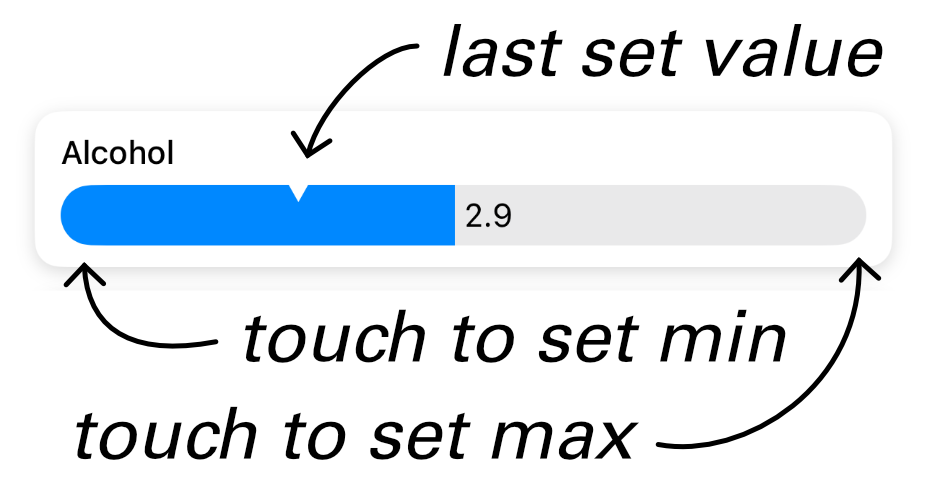
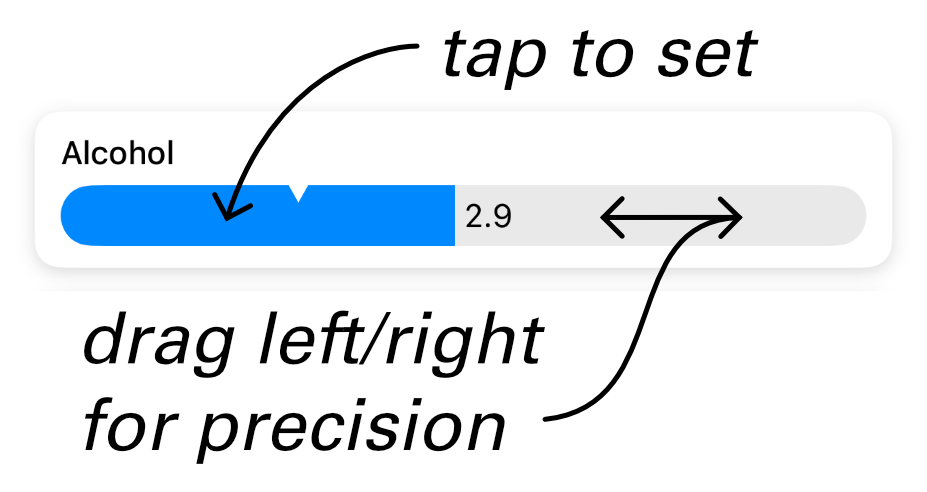
Sliders — Touch the left or right edge to snap to the minimum or maximum. The notch marks the last set value. Tap anywhere to set that value precisely, or drag left/right to fine-tune.
Your data is saved immediately as you make each change — there's nothing to submit or confirm.
Values reset each day. When a new day begins, all variables return to their unset state. Yesterday's values have no effect on today.
Daily Notes
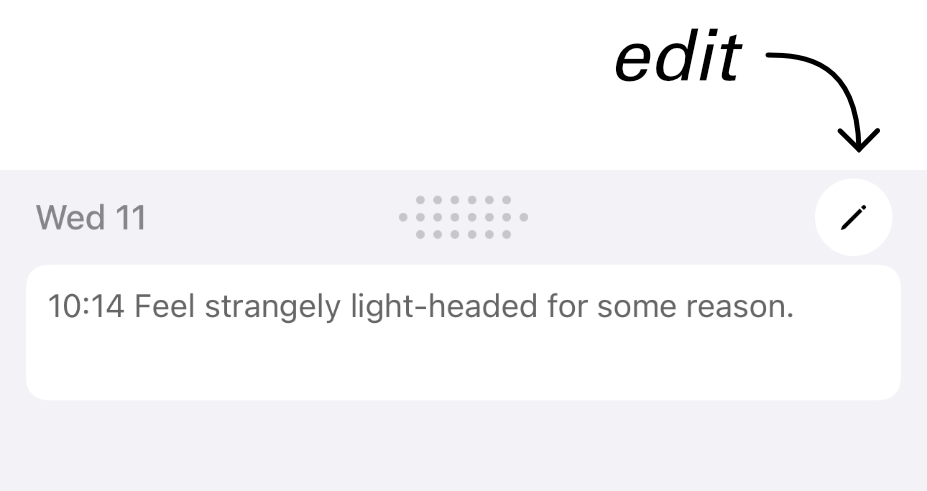
At the bottom of the main screen, below your variables, is a free-form text field for the current day. Use it to capture context that doesn't fit a variable — what you ate, how you slept, what was unusual. Tap the pencil button in the header to activate the note field for editing.
Navigating Days
The header bar shows the current date on the left, the day indicator dots in the center, and a pencil button on the right.
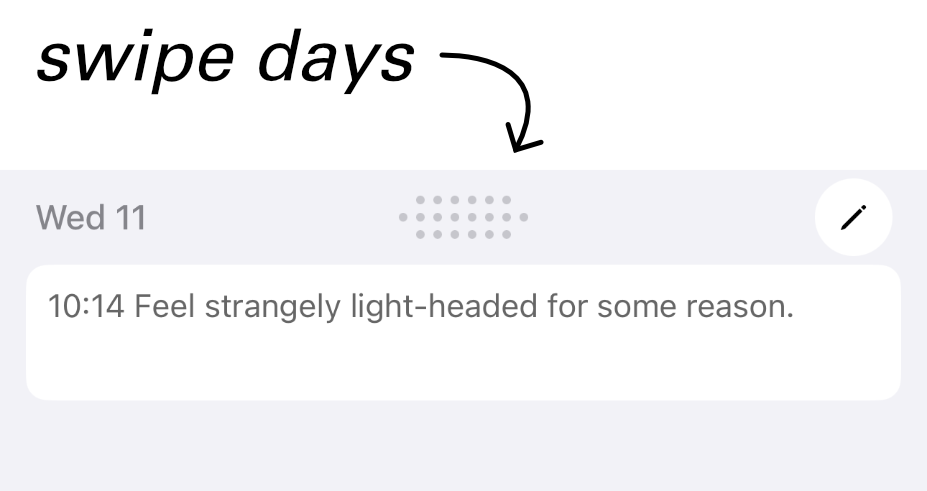
Swipe left or right to move between days.
Tap the days bar — Tap any dot to jump directly to that day.
Pencil button — Tap it to make the daily note editable.
You can edit any previous day's values or notes — just navigate to that day and make your changes.
Viewing History & Graphs
Correlate can plot your variables over time so you can spot trends and correlations.
Entering Selection Mode
Long-press any variable on the main screen to enter selection mode. If it doesn't respond on the first try, press and hold for a moment longer.
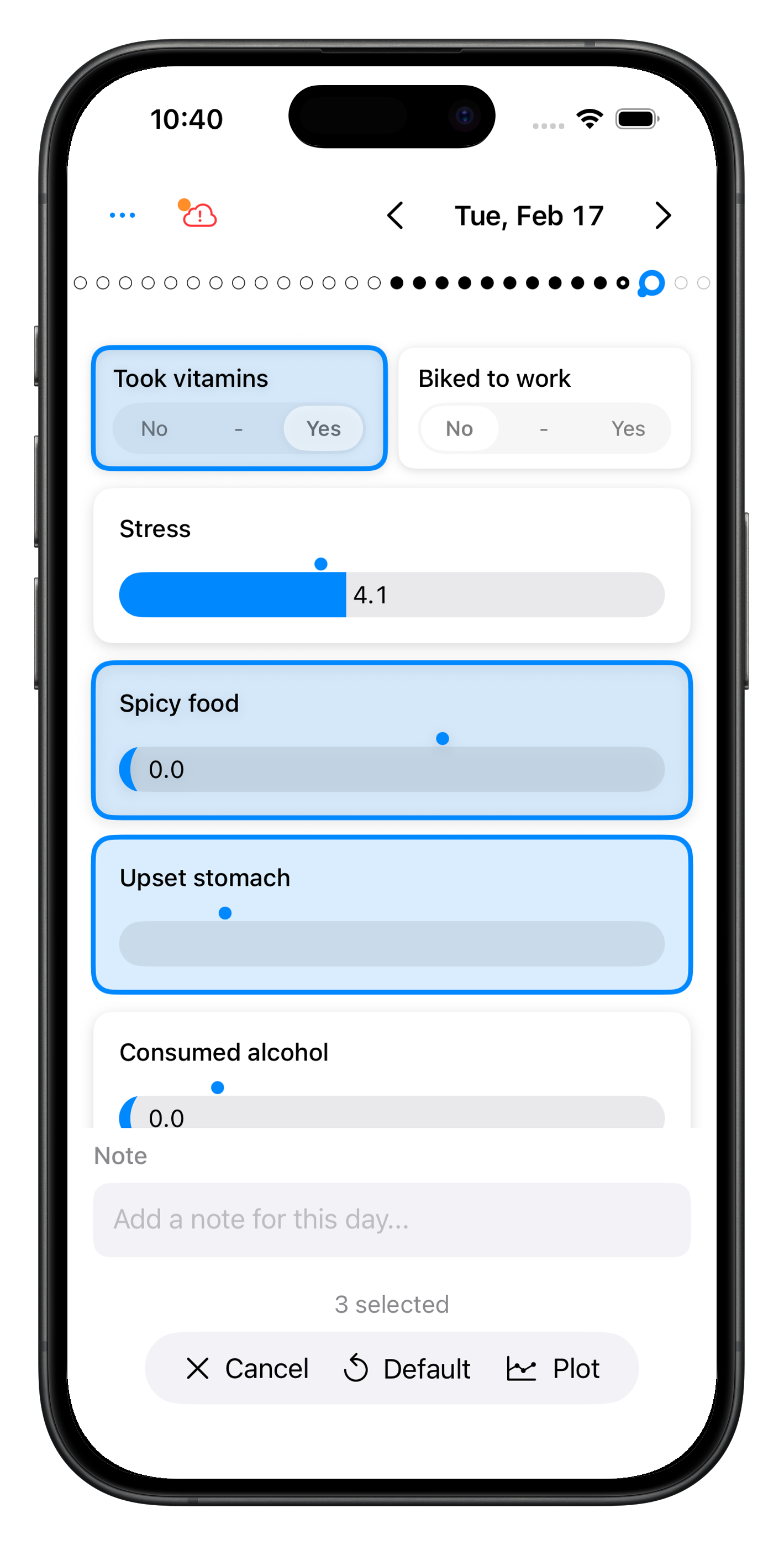
Once in selection mode, a pill-shaped toolbar slides in at the top of the screen. Tap any additional variables to add them to the selection.
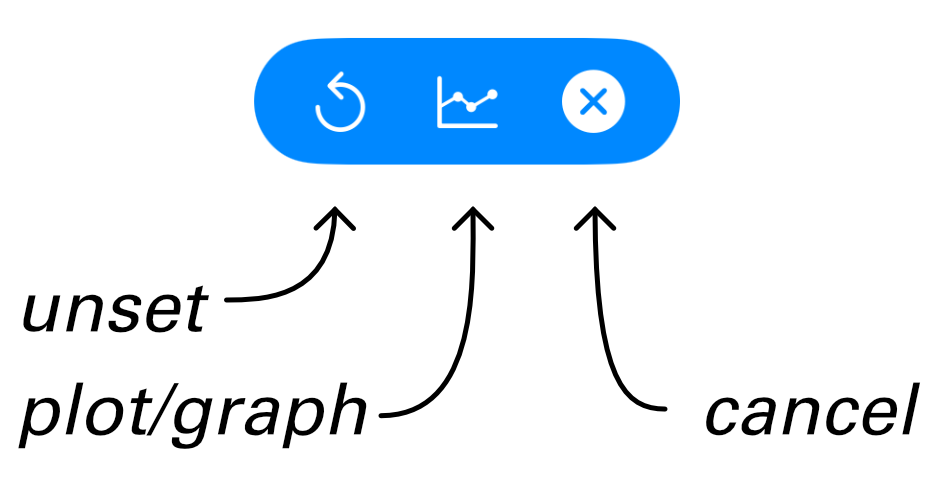
The toolbar has three buttons:
- Unset (circular arrow) — Resets all selected variables to their unset state for the current day.
- Plot/Graph (chart icon) — Opens the visualization for the selected variables.
- Cancel (×) — Exits selection mode without taking any action.
What Gets Plotted
| Variables selected | View shown |
|---|---|
| 1 | Heat map calendar — one year of intensity at a glance |
| 2 or more | Line graph — variables plotted together over time |
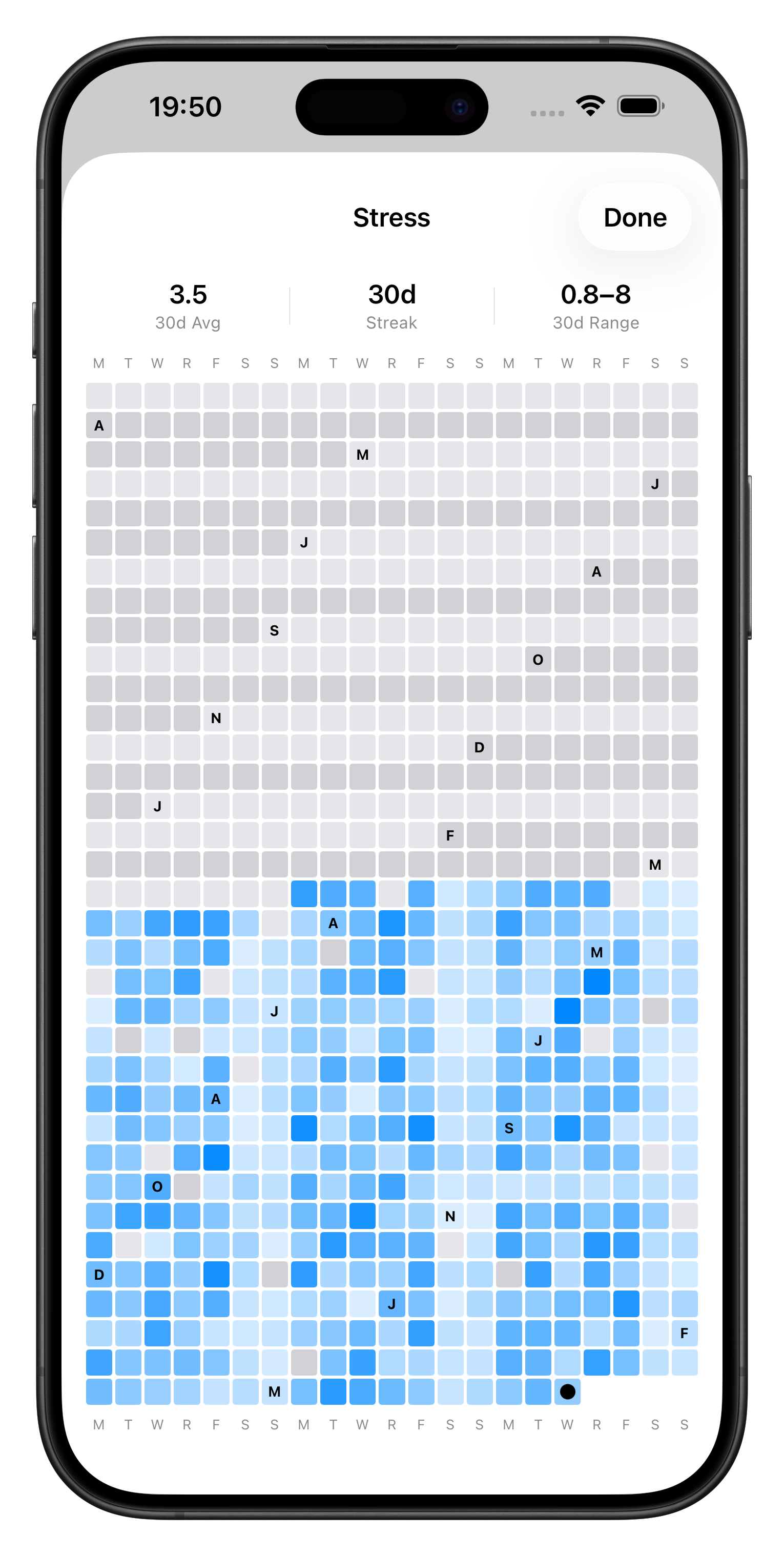
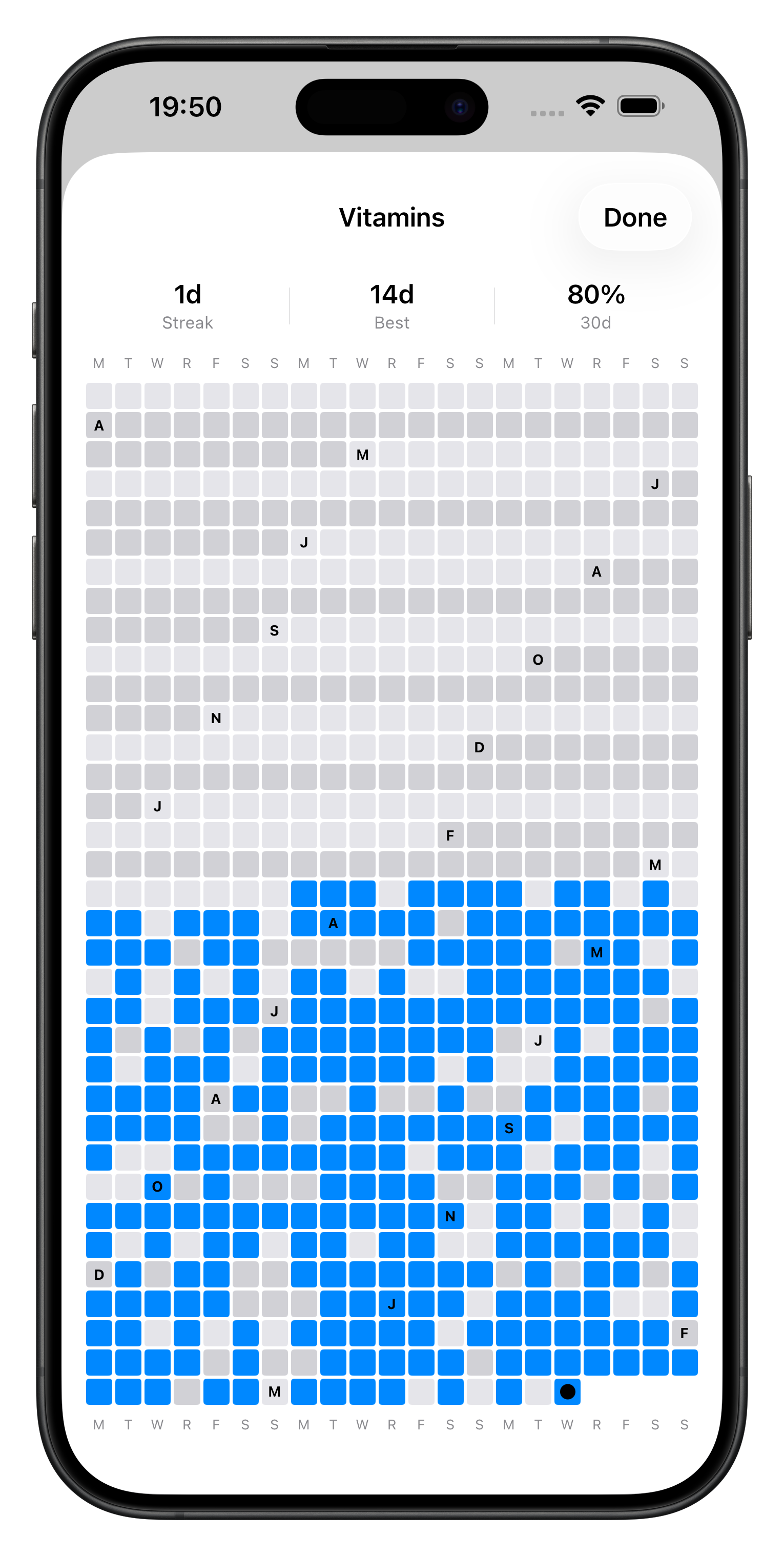
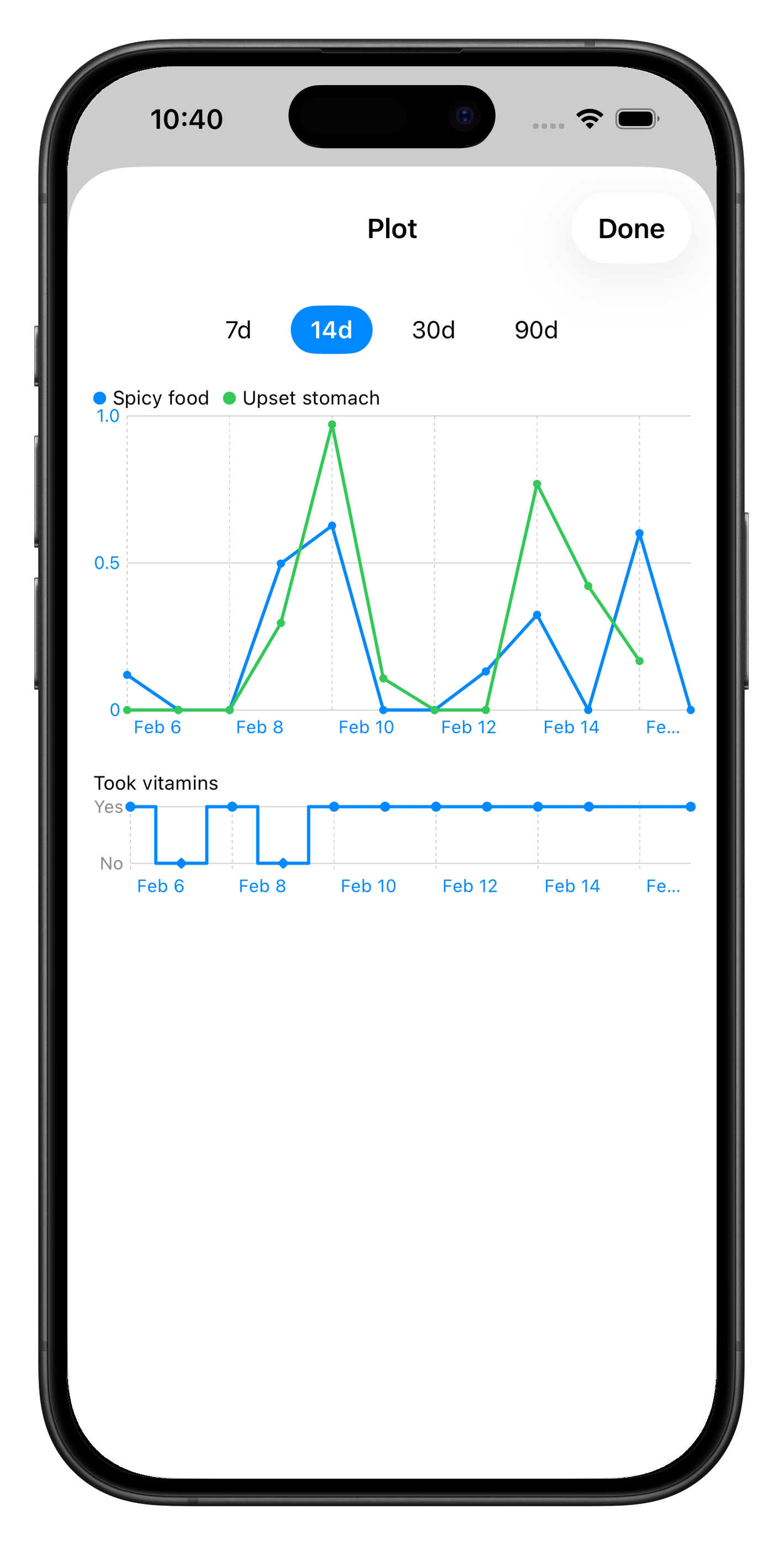
Managing Variables
Open Settings (the gear icon) to add, edit, or remove variables.
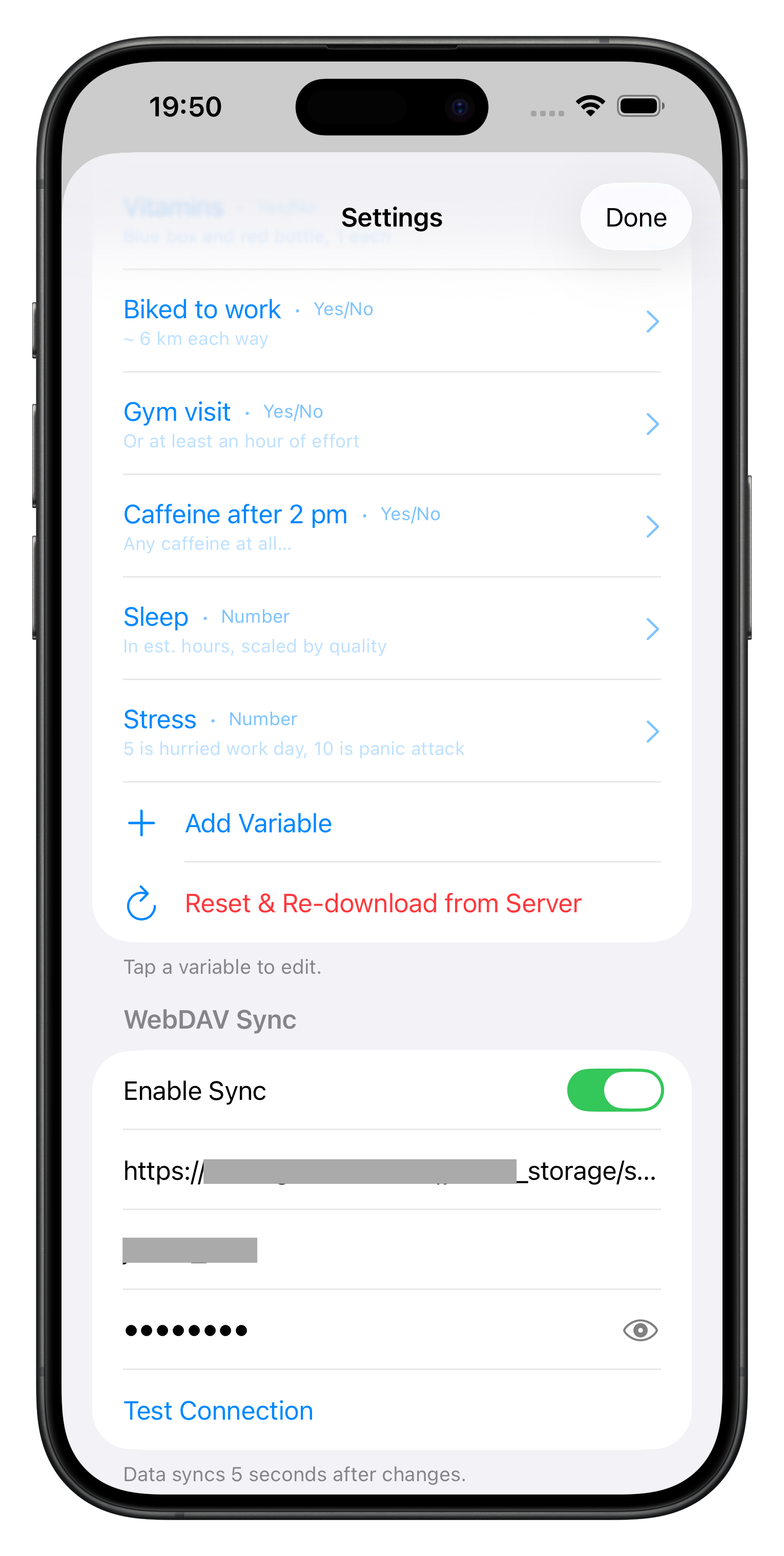
Adding a Variable
Tap + to create a new variable. You'll set:
- Name — Up to 32 characters.
- Note — An optional reminder to yourself about what this variable means (up to 512 characters). The note appears as a subtitle under the variable name on the main screen.
- Type — Boolean (toggle) or Float (slider).
For Float variables, also set:
- Min — The lowest value on the slider.
- Max — The highest value on the slider.
Editing and Deleting
Tap a variable in Settings to edit its name, note, or numeric range. To delete a variable, swipe left on it in the list.
Deleting a variable does not remove its historical data — past entries are preserved.
Variable Order
The order you set in Settings is the order variables appear on the main screen. Drag to reorder. Because booleans are grouped in pairs on the same row, adjacent booleans in the list will share a row — keep this in mind when arranging your list.
Sync
Correlate can sync your data to a WebDAV server that you control. Set up sync in Settings under the Sync section — enter your server URL, username, and password.
Data syncs automatically 5 seconds after your last change, so it stays current without you having to think about it.
Sync log — If you need to troubleshoot, long-press the sync status button in Settings to reveal the sync log. It shows a timestamped history of sync attempts and any errors.
Data Format
Your data is stored as a single JSON file (correlate.json). You can find a copy on your WebDAV server if sync is enabled, or extract it from the app's local storage.
Structure
{
  "dataId": "<UUID>",
  "variables": [
    {
      "id": "<UUID>",
      "name": "Sleep",
      "note": "In est. hours, scaled by quality",
      "sortOrder": 0,
      "isDeleted": false,
      "type": {
        "float": { "min": 5, "max": 10 }
      }
    },
    {
      "id": "<UUID>",
      "name": "Gym visit",
      "note": "Or at least an hour of effort",
      "sortOrder": 1,
      "isDeleted": false,
      "type": {
        "boolean": {}
      }
    }
  ],
  "entries": {
    "2026-03-22": {
      "values": {
        "<variable-UUID>": { "floatValue": 7.5 },
        "<variable-UUID>": { "boolValue": true }
      },
      "note": "Optional free-form text for this day."
    }
  }
}
Key points:
dataId— A stable UUID that identifies this dataset. Used during sync to detect conflicts.variables— The full list of variable definitions, including deleted ones (isDeleted: true). Deleted variables are retained so that historical entries referencing their IDs remain interpretable.entries— A dictionary keyed by date (YYYY-MM-DD). Each entry contains avaluesmap (variable UUID → value) and an optionalnotestring.- Variable values use either
floatValue(a JSON number) orboolValue(a JSON boolean) depending on the variable type. - Dates with no recorded activity have no entry in the dictionary — missing dates are implicitly "no data."
JSON Schema
For validation or tooling, here is a JSON Schema (Draft 07) describing the format:
{
  "$schema": "http://json-schema.org/draft-07/schema#",
  "type": "object",
  "required": ["dataId", "variables", "entries"],
  "properties": {
    "dataId": { "type": "string", "format": "uuid" },
    "variables": {
      "type": "array",
      "items": {
        "type": "object",
        "required": ["id", "name", "sortOrder", "isDeleted", "type"],
        "properties": {
          "id":        { "type": "string", "format": "uuid" },
          "name":      { "type": "string", "maxLength": 32 },
          "note":      { "type": "string", "maxLength": 512 },
          "sortOrder": { "type": "integer", "minimum": 0 },
          "isDeleted": { "type": "boolean" },
          "type": {
            "type": "object",
            "oneOf": [
              {
                "required": ["boolean"],
                "properties": { "boolean": { "type": "object" } }
              },
              {
                "required": ["float"],
                "properties": {
                  "float": {
                    "type": "object",
                    "required": ["min", "max"],
                    "properties": {
                      "min": { "type": "number" },
                      "max": { "type": "number" }
                    }
                  }
                }
              }
            ]
          }
        }
      }
    },
    "entries": {
      "type": "object",
      "patternProperties": {
        "^[0-9]{4}-[0-9]{2}-[0-9]{2}$": {
          "type": "object",
          "required": ["values"],
          "properties": {
            "note": { "type": "string" },
            "values": {
              "type": "object",
              "patternProperties": {
                "^[0-9a-fA-F-]{36}$": {
                  "type": "object",
                  "oneOf": [
                    { "required": ["floatValue"], "properties": { "floatValue": { "type": "number" } } },
                    { "required": ["boolValue"],  "properties": { "boolValue":  { "type": "boolean" } } }
                  ]
                }
              }
            }
          }
        }
      }
    }
  }
}